What Is Auth0? Connecting Active Directory to Auth0 and Logging into a Web Application
What Is Auth0?
Auth0, a product from Okta, is a platform that provides Identity and Access Management solutions. Auth0 offers methods such as authentication, user management, and secure access. Auth0 provides fast, easy, and secure solutions that meet identity management needs, offering quick integration for both enterprises and developers alike.
Let’s Look at Auth0’s Main Features
- Standard protocols: supports industry standards such as OAuth 2.0, OpenID Connect, and SAML.
- Social logins: enables sign-in with social media accounts such as Google, Facebook, and Twitter.
- Two-factor verification: supports Two Factor Authentication methods, such as email verification and SMS-based verification.
- The ability to customize login screens however you like on paid tiers
- Staying current with security standards by quickly rolling out up-to-date solutions
Building a Vue.js Application with Auth0
Requirements
- An AD lab server set up in an Active Directory environment
- Basic Node.js knowledge
- Basic networking knowledge
Creating an Auth0 Account
We go to Auth0.com and click Sign Up to create a free account.
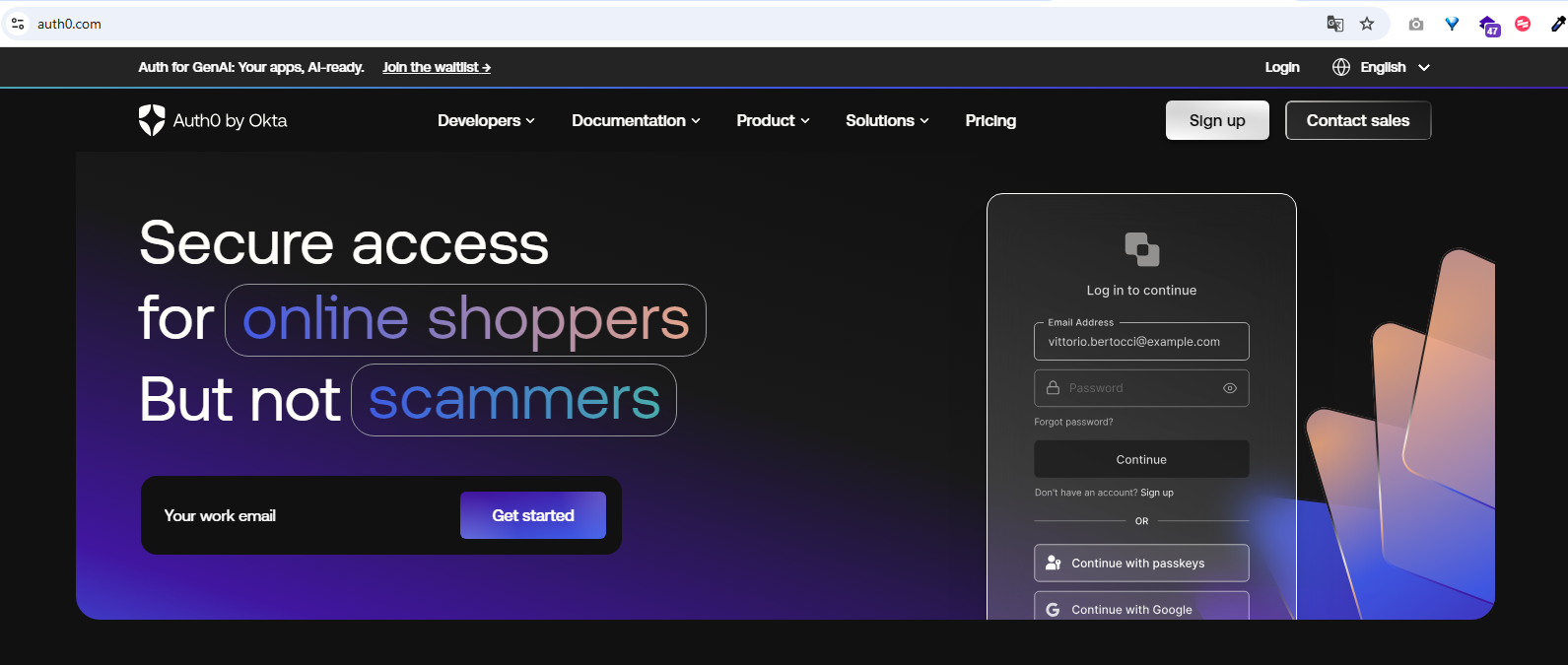
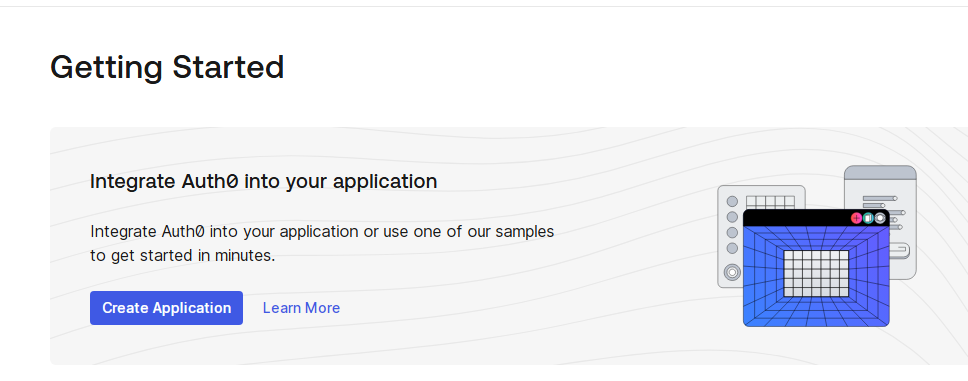
After creating the account, we create our first application. We follow the Create Application step.
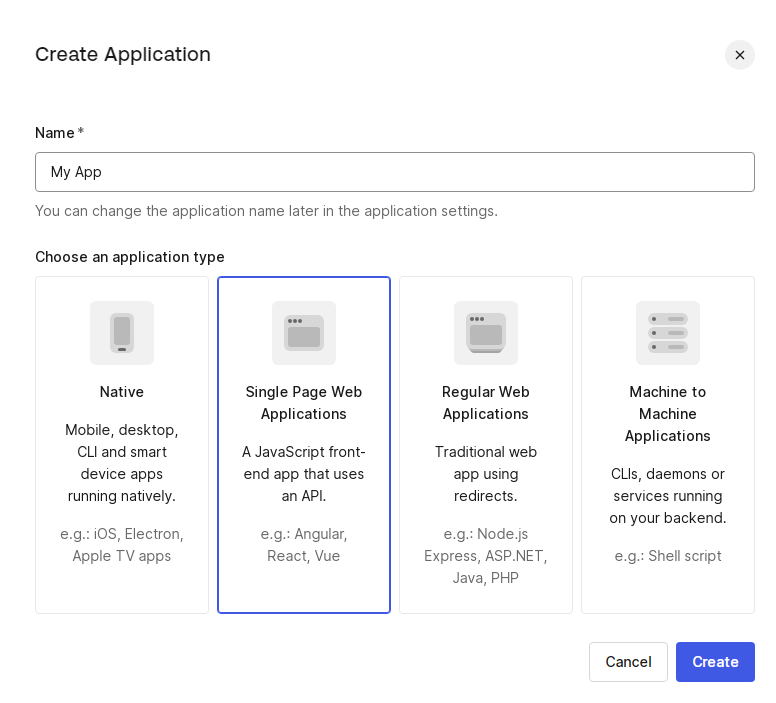
On the page that opens, we select Single Page Application. At the top, we set the name of our application.
By choosing the Quick Start step, we’ll be able to get a Vue application up and running quickly.
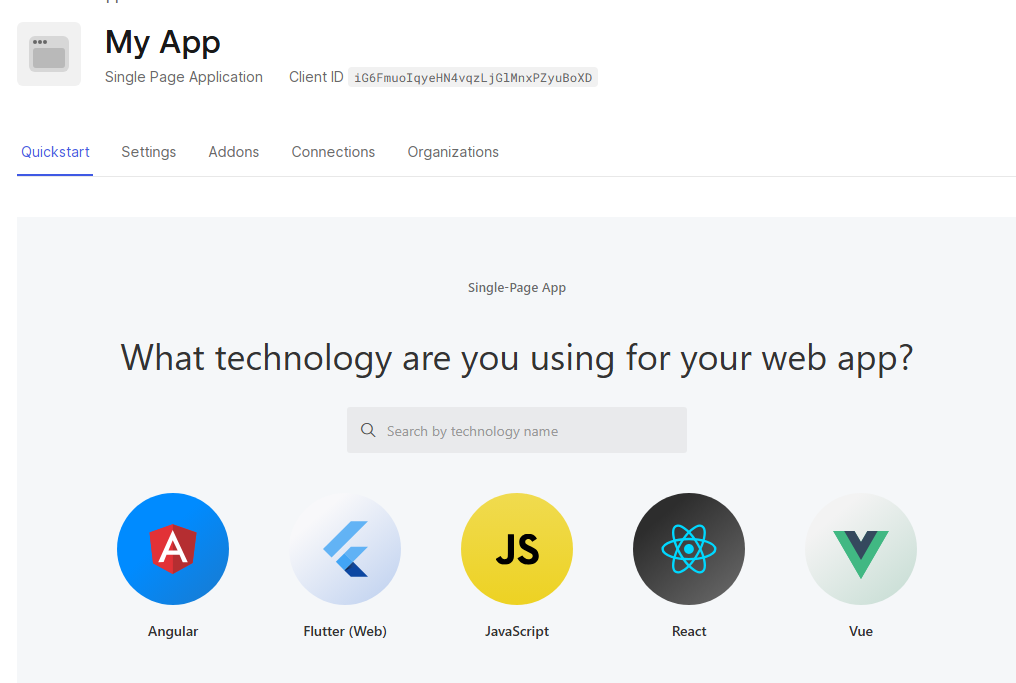
When we select the Vue.js application, Auth0 provides us with a very nicely put together set of documentation. We can download the application directly by following the Download Sample step. After that, we need Node.js installed on our machine so we can run the Vue.js application.
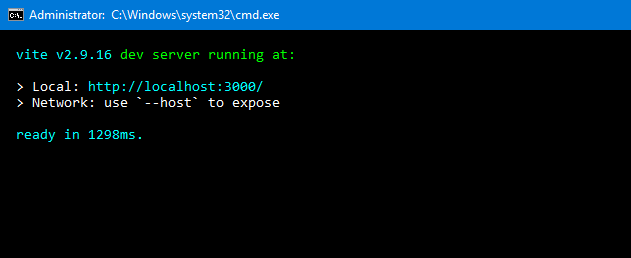
npm install && npm run serve
We can run the sample Vue project we downloaded by entering the command above.
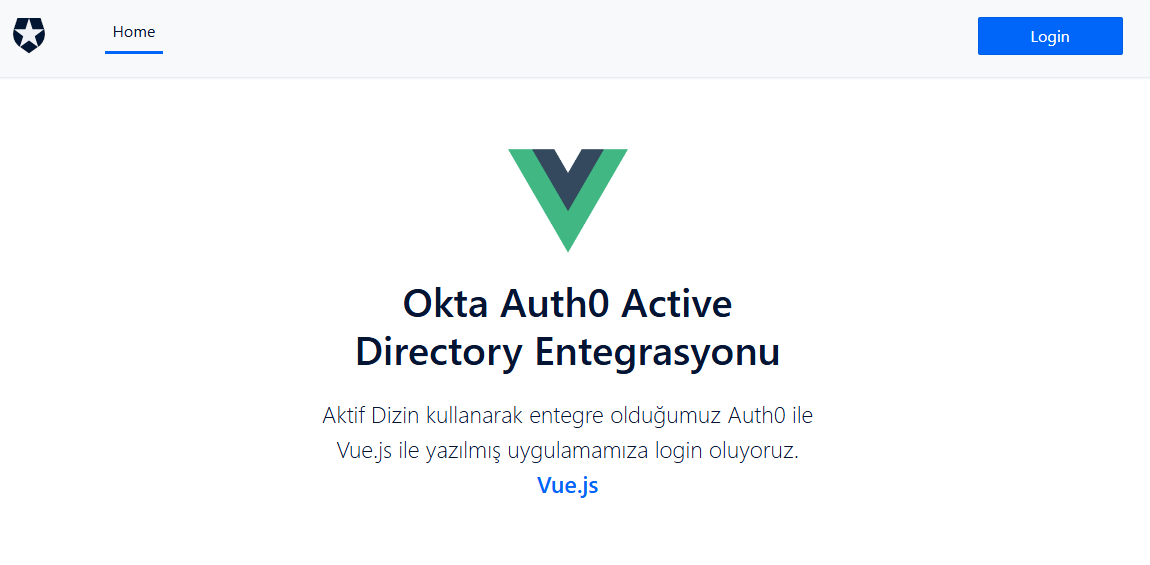
Setting Up the Active Directory Connection with Auth0
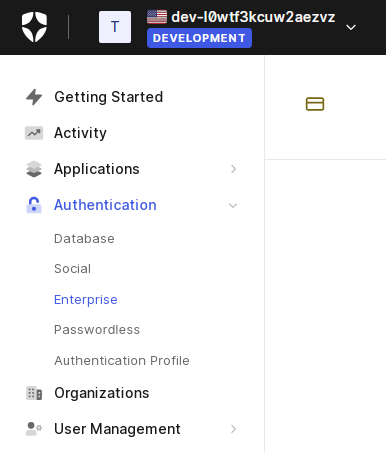
Using the Authentication tab in the left-hand menu of the Auth0 admin console, we’re going to set up our Active Directory connection. We go to Authentication -> Enterprise.
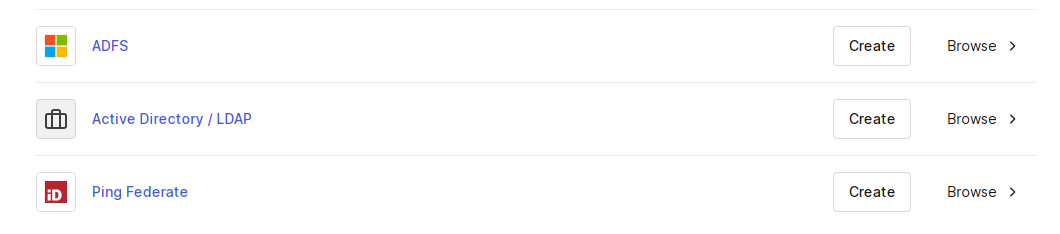
On the page that opens, we select the Active Directory / LDAP option and proceed.
We proceed with the Create Connection step in the top right.
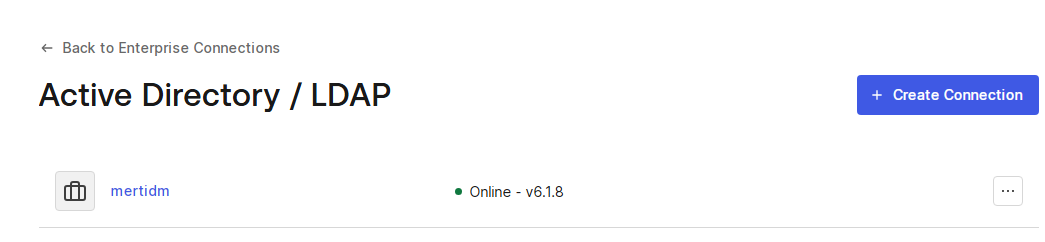
After creating it, we move to the setup tab and install the agent for our Windows Server. This agent is what enables communication between Active Directory and Auth0. After downloading the agent, you can run the regular installer file. After installation, there’s a simple web-based application in the Start menu for performing the configuration steps needed for the agent to recognize our Active Directory. We open localhost:8357 in the browser to sync the agent with our Active Directory settings.
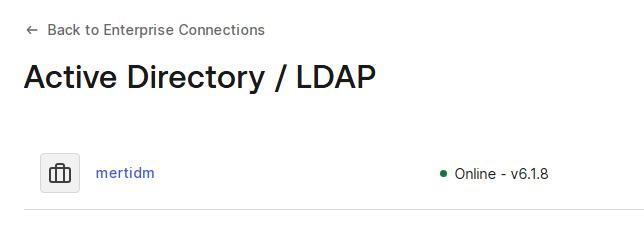
After the sync, when we go to Authentication -> Enterprise -> Active Directory in the Auth0 admin dashboard, we can see that our connection status has been updated to online.
Configuring the Application’s Active Directory Authentication Setting
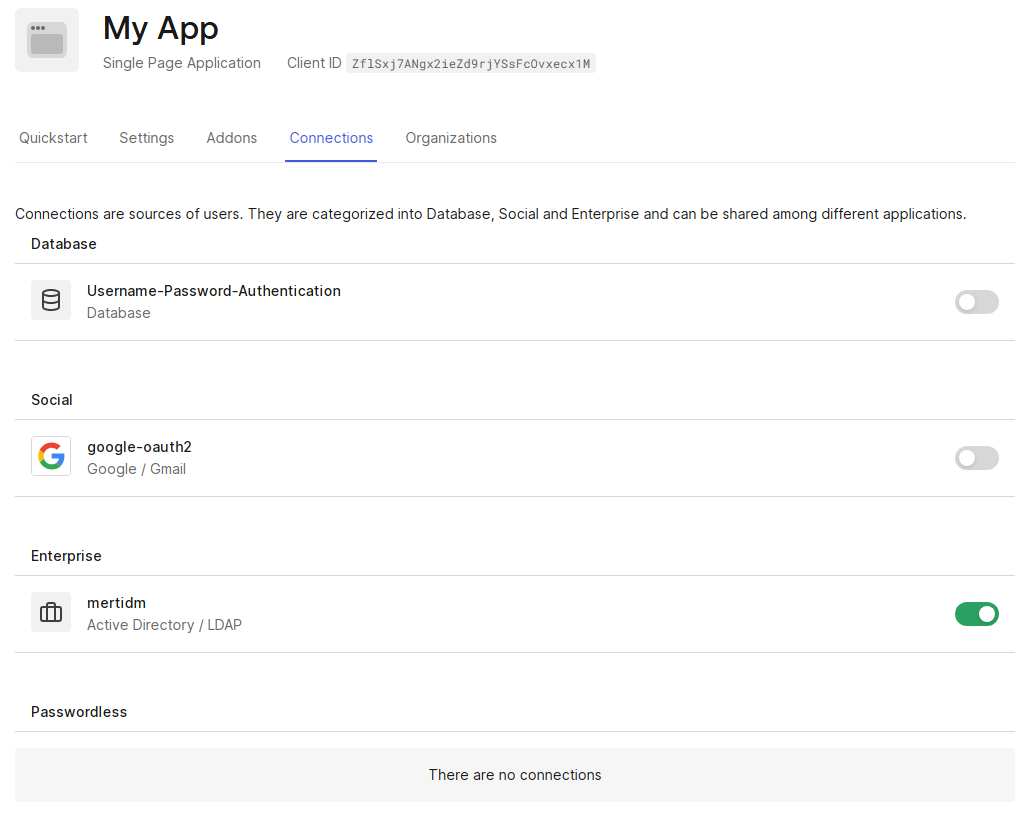
Under the Application heading in Auth0, we go to our application’s settings section. On the Connections tab, we enable the “Active Directory / LDAP” option at the bottom and disable the other options. This way, we’ve configured our application to only allow authentication through Active Directory accounts.
Authenticating into the Application with an Active Directory Account
We covered earlier how to run our application. By going to the root directory of our Vue.js application and using the command
npm run serve
we can run it.
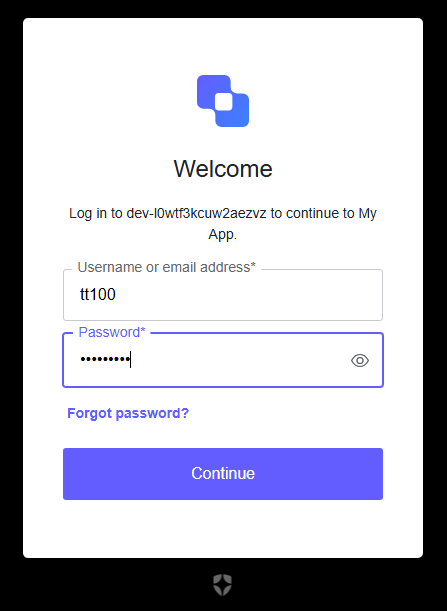
By going to the login screen in our application, we can sign in using the accounts we created in Active Directory. This way, authentication is handled quickly and securely through Auth0. In modern application development architectures, processes like login flows and Active Directory integration can be set up with far less time and cost using Auth0 integration.
In addition, using Auth0 as a centralized identity and access management solution for systems enables functions like logging and auditing to be carried out more effectively and quickly. This, in turn, offers significant advantages in terms of system security and traceability.