Sending Messages to All Devices in Active Directory
In our companies, we generally use Active Directory to centrally manage our users’ devices. Beyond centrally managing devices, users, and security policies, Active Directory also packs in a lot of other useful features. With a simple example, I wanted to show how you can send a message to the Windows machines on your domain in Active Directory.
For example, say you want to send a message like “Good morning, have a great and healthy day!” at 10:00 AM to every device that’s currently powered on. Doing this with PowerShell turns out to be a really handy and easy approach.
So What Can Sending Messages to All Devices Be Used for in Identity and Access Management?
Before getting into the details, what can we use messaging for in Identity and Access Management (IAM, IDM) systems?
- Notifying users whose passwords are about to expire so they can reset them
- Sending security reminders
- Notifying users (for example, that an access review period will end in 5 days)
- Emergency announcements
are a few examples we can list.
First, I want to briefly talk about the sample environment I set up. It might be useful for test setups.
I set up a Windows Server machine named Mertidm.com. I installed the Active Directory management tools on this server.
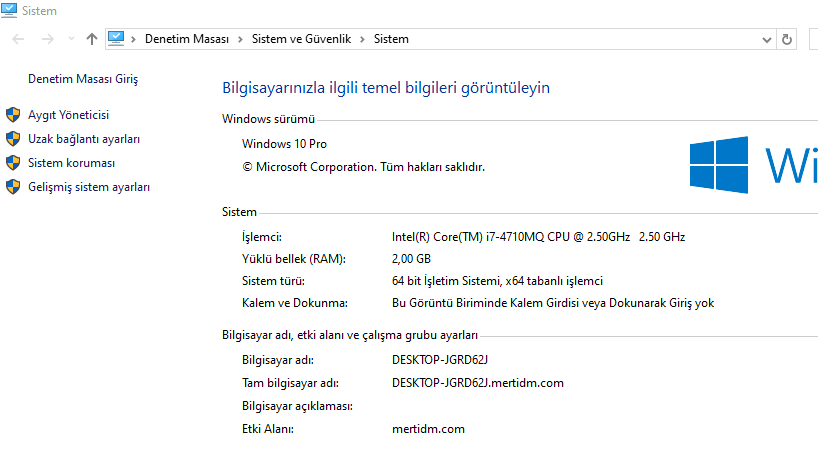
Next, I set up a Windows 10 Pro machine on a virtual machine and joined it to the domain in Active Directory.
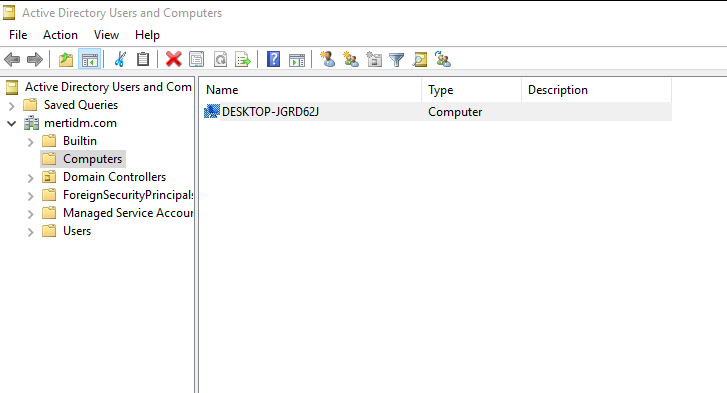
From my Active Directory server machine, I find the name of the computer I’ve joined to the domain. We can use the Active Directory Users and Computers tool for this. In my example, since I’ll be sending a message to a single device, I specify a particular target computer name and send the message. I’ll cover the step for sending to every active computer on the domain in the next code block.
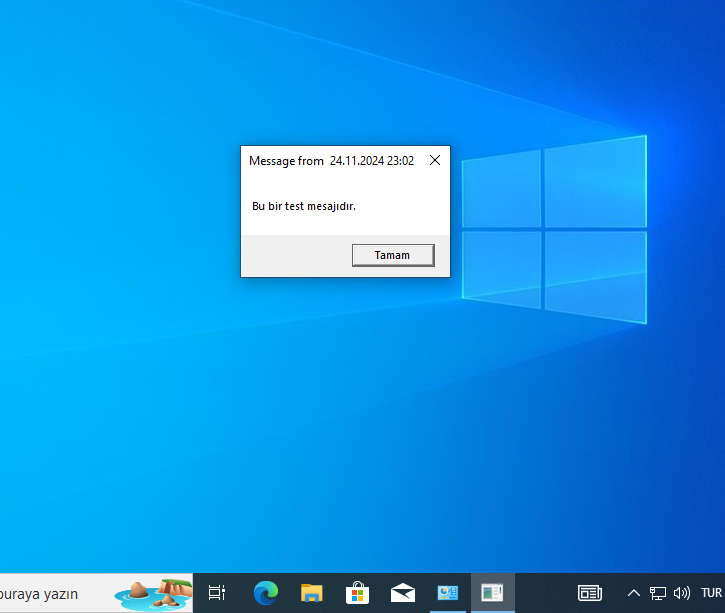
Using this code, I send a test message to the Windows 10 Pro machine whose computer name I found.
$targetComputer = "DESKTOP-JGRD62J"

# Send the message and check whether an error occurred
try {
    Invoke-Command -ComputerName $targetComputer -ScriptBlock {
        msg * "This is a test message."
    }
    Write-Host "Message sent successfully: $targetComputer"
} catch {
    # If there was an error, print the details
    Write-Host "An error occurred: $targetComputer" -ForegroundColor Red
    Write-Host $_.Exception.Message -ForegroundColor Yellow
}
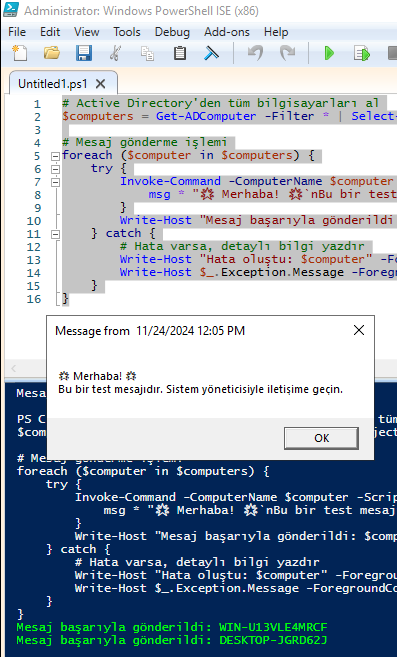
To send to all devices, we can test and use the code below.
# Get all computers from Active Directory
$computers = Get-ADComputer -Filter * | Select-Object -ExpandProperty Name

# Send the message
foreach ($computer in $computers) {
    try {
        Invoke-Command -ComputerName $computer -ScriptBlock {
            msg * "🌟 Hello! 🌟`nThis is a test message. Please contact the system administrator."
        }
        Write-Host "Message sent successfully: $computer" -ForegroundColor Green
    } catch {
        # If there was an error, print the details
        Write-Host "An error occurred: $computer" -ForegroundColor Red
        Write-Host $_.Exception.Message -ForegroundColor Yellow
    }
}